Introduction
Sync Codex knowledge with the project.
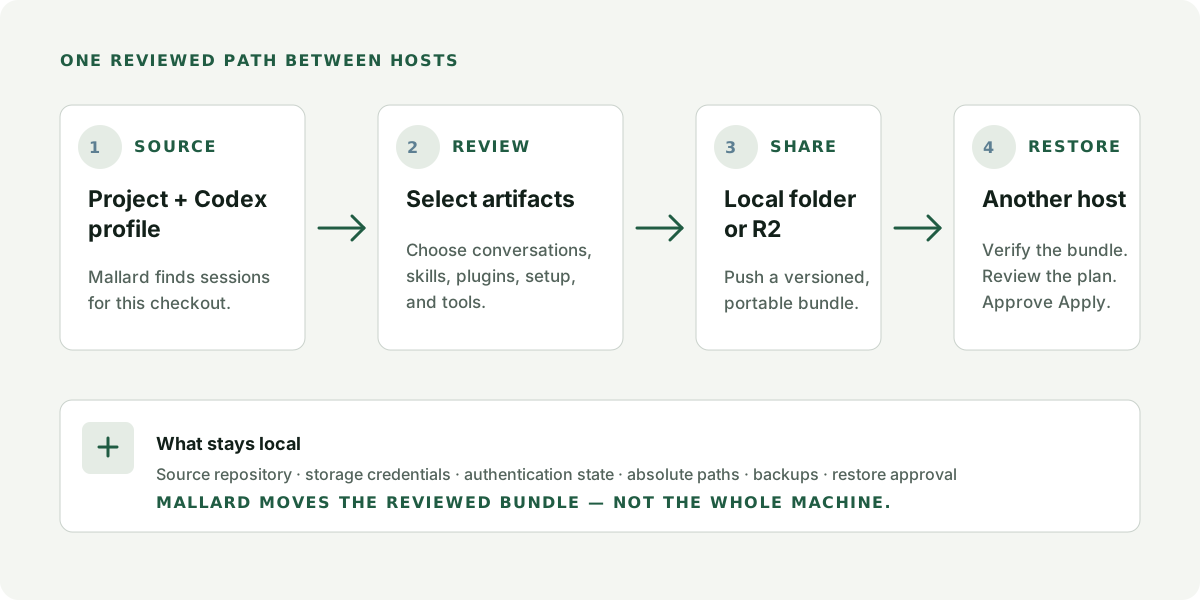
Mallard lets you choose the Codex sessions and reusable setup that should follow a project to another machine. Your source repository stays where it is.
Getting started · 1
Configure Project
Start with the folder Codex already uses. Mallard uses that checkout to discover the conversations and project files that belong together.
- 1Choose the project folder
Select the existing checkout on this machine. Git helps Mallard match the same repository on another host, but a non-Git folder also works.
- 2Choose the Codex profile
Select the exact Codex home used for this project—normally
~/.codex, or a customCODEX_HOME. Mallard reads project-related resources from this profile. - 3Name the project
Use a name teammates will recognize. If you connect an existing remote repository, Mallard adopts its shared name and identity.
Getting started · 1.1
Review Git-based Projects
A Git project gives Mallard enough structure to show not only which Codex sessions happened, but where they fit in the work. The activity page combines the selected branch, its first-parent commit history, and the sessions detected for the project so a developer can move from a code change to the reasoning behind it without searching through a separate chat archive.
Use the Branch menu when you want to review another line of work. Sessions recorded on that branch appear beside the commits they relate to, while Uncommitted Changes keeps sessions that are not linked to a commit in the selected branch visible at the top. This makes unfinished investigations easy to find and prevents useful work from disappearing simply because it has not produced a commit yet. The commit rail shows the short SHA, date, and commit subject, giving reviewers and returning developers a chronological explanation layer over the repository history.
a42d91eJul 19, 10:18 AMGuard restore plan conflictsVerify restore safeguards↗ Open in Codex⌘ Open in TerminalUser rounds 3Total tokens 46.8KAgent messages 9Tool calls 7› Show chat details
Every session card summarizes its start and end time, User rounds, Total tokens, Agent messages, and Tool calls. Those signals help you distinguish a quick question from a deep implementation session, estimate where the team invested attention, and choose the right conversation before opening it. Show chat details expands a readable preview of the user and Codex turns for a quick check. When you need the full working context, Open in Codex opens that exact session in the Codex desktop app, while Open in Terminal resumes it with the Codex CLI in the project checkout. These one-click handoffs turn the activity view into a practical starting point for code review, onboarding, debugging, and continuing work after a handoff.
Getting started · 1.2
Review Non-Git Projects
Mallard does not require a Git repository to make Codex work discoverable. For prototypes, research folders, scripts, and projects that have not entered version control, the activity page gathers project-owned Codex threads into one timeline ordered by last activity. You still get the context needed to understand what happened in the folder, without inventing commit relationships that do not exist.
The project summary identifies the local directory, bound Codex profile, and latest Push or Pull for each linked storage target. Below it, Codex threads presents the newest work first. Each card uses the same session title, dates, User rounds, Total tokens, Agent messages, Tool calls, chat preview, and launch actions as a Git project. The difference is deliberately simple: without commits or branches, Mallard organizes work by recency so the next useful session is usually at the top.
This view is especially useful before a project has a formal repository: a developer can recover the decisions behind an experiment, inspect how much iteration a thread required, and continue the exact task instead of reconstructing the prompt from memory. If the folder later becomes a Git repository, future activity can use branch and commit context; the non-Git view remains an honest record of the earlier work. Like Git projects, activity is discovered from the Codex profile bound to this project, and Mallard can load previous 30-day windows when you need older sessions.
Getting started · 2
Configure Storage
Storage is the meeting point between hosts. Use a local folder for a simple shared location, or Cloudflare R2 for remote object storage you control.
Getting started · 3
Select Artifacts
Mallard discovers resources related to the chosen checkout and Codex profile. Review the list and save the selection as the project’s portable recipe.
Mallard may ask you to review the list again when the profile changes or new resources appear. Nothing outside the saved recipe is pushed.
Getting started · 4
Push and Pull
Push publishes a reviewed generation. Pull fetches and verifies that generation, then pauses for review before changing the destination host.
On the source host
- Open the project and select a storage target.
- Review local changes and the saved resource recipe.
- Choose Push project, or Finish & push during setup.
- Wait for the generation to finish before closing Mallard.
On the destination host
- Check out the same source project and configure the Codex home used there.
- Add the same storage and connect the matching remote repository.
- Choose Pull & review. Mallard fetches the generation and verifies its manifest and content hashes.
- Inspect the restore plan, resolve any conflicts or blocked items, then explicitly approve Apply.
Configuration settings
Project Settings
A project combines a shared repository identity with a machine-local checkout and Codex profile.
- Project name
- The shared label used to recognize the project in Mallard and storage.
- Project checkout
- The local folder that anchors project-relative discovery. Another host can use a different absolute path.
- Codex profile
- The local Codex home used for discovery and restore. Change the machine-local binding if this host uses a different profile.
- Resource recipe
- The saved set of conversations, setup, skills, plugins, and tools that Push may include.
- Storage links
- One project can link to multiple storage targets. Every link keeps its own reviewed base and sync history.
Configuration settings
Storage Settings
Storage definitions are local to Mallard on this host. Give each one a clear name so you know where a project is being pushed.
auto.Changing a storage connection changes where future Push and Pull operations look. Unlink the storage from a project before adopting a different remote repository identity.
Configuration settings
Removing a Project
Remove a project when this Mallard installation should stop tracking it.
Removing a project does not delete project files. It detaches Mallard’s machine-local binding so the same project can be mapped again later.
Troubleshooting
Troubleshooting and Sync Logs
Use Sync Logs to answer three questions quickly: what Mallard tried, where it stopped, and what you can do next.
~/.mallard/logs to see the structured JSONL files.A practical triage order
- Filter to the failed action. Start with Push or Pull, then include Storage or Configuration if the failure happened before transfer.
- Read the first warning or error. Later messages often describe cleanup after the original cause.
- Confirm project and storage names. Log entries carry local project and storage context without uploading the log history.
- Retry after correcting the setting. A new run remains separate, making it easier to compare outcomes.
Manage retained logs
Logs stay on this machine. The default policy keeps them for 30 days with a maximum of 100 MB. In Manage logs, you can change both limits, open the folder, clean up old files, or delete all retained activity logs.